Mumble
Mumble is a cross-platform and free alternative to Discord and TeamSpeak.
TL; DR
- Address:
mumble.skobk.in - Port:
64738(standard)
Step-by-step instructions
Warning
If you have read these instructions carefully, you should not run into any problems.
1. Download
Download Mumble here: mumble.info/downloads/.
On Linux, Mumble is available in the official repositories.
2. Install
Install the client only.
3. First launch and audio setup
After installation and launch, the audio setup wizard appears. Here it is important to read carefully what you are asked to do and to check whether your microphone works. If you can hear yourself during the test, everything is fine. The default input and output device settings usually work if Windows detected the devices correctly as defaults. If you cannot hear yourself during the test, you can select the devices manually.
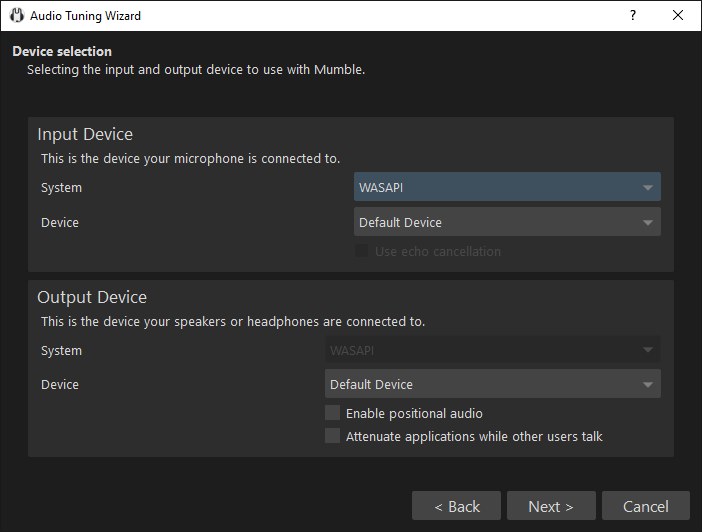
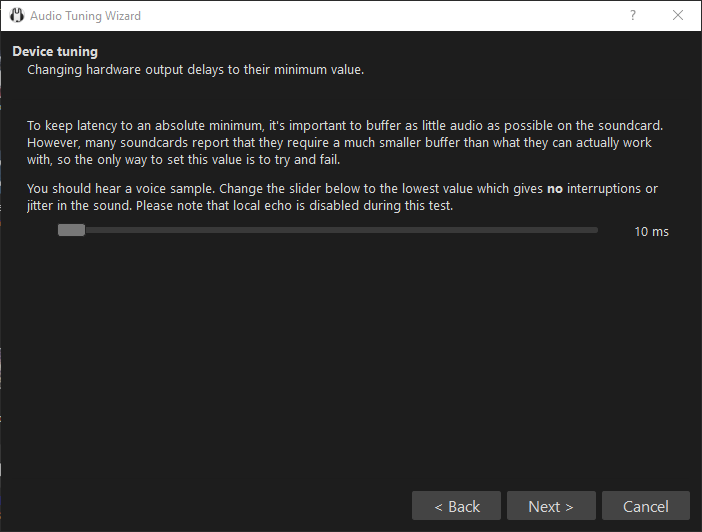
Echo cancellation should be turned off if you play with headphones. Attenuation should be turned off if you play shooters. In the next window, you need to move the slider to the leftmost position at which you have no sound problems.
The rest of the noise level settings can be skipped, because the server uses Push-to-talk to avoid problems with excess noise. In the “Voice activity detection” window, select “Push to talk”.
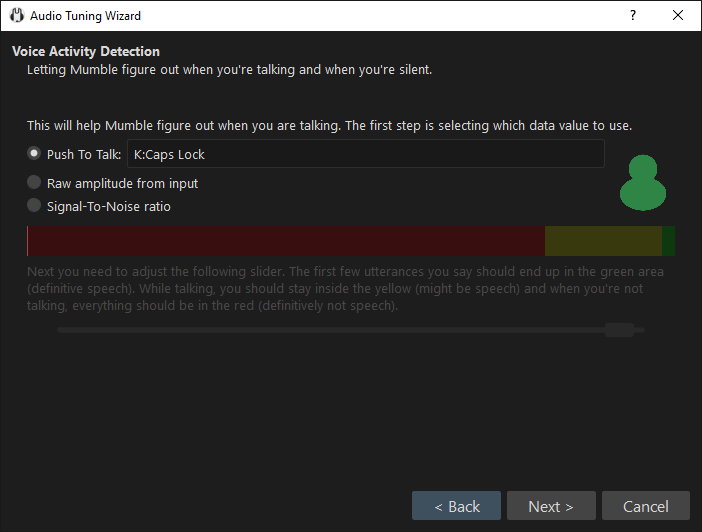
As the optimal choice, “Caps Lock” is recommended. It sits very close to the other movement keys in games and,
besides, is usually not needed there. To keep it from changing case when pressed, you can install a
registry patch
to disable this action for the Caps Lock key (on Linux: setxkbmap -option caps:none). An alternative to the patch
is to remap Caps Lock to F15 using the SharpKeys program.
After these changes you need to log out and log back in for Caps Lock to start working in the new way.
4. Audio quality and voice notification settings
Next up: audio quality and voice notification settings. Text-to-speech is recommended to be turned off. For quality, high is recommended.

5. Certificate setup
Important
COMPLETING THIS STEP IS MANDATORY FOR OBTAINING ACCESS RIGHTS TO CLOSED CHANNELS.
The certificate wizard lets you create your personal certificate (think of it as the key to your nickname and access rights) and save it. You need to create a named certificate. Choose “Create certificate” and enter your name and email. After that you will be asked to save it. I recommend saving the file somewhere you will not lose it. I keep mine in the cloud. If you were connected to the server, you need to reconnect after creating the certificate. If you created the certificate automatically or are not sure that you created a named certificate, open the “Settings” menu, choose “Certificate wizard”, then repeat the procedure described above and save the certificate in a safe place.
6. Adding the server
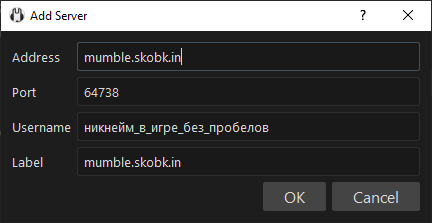
Select the “Server”, “Connect” menu items. Now you need to add the main Mumble server. Click the “Add new” button and fill in the corresponding fields.
- Connection details:
- Label:
mumble.skobk.in - Address:
mumble.skobk.in - Port:
64738(standard) - Username:
your in-game nickname with underscores instead of spaces
- Label:
After that you need to connect to the server. To do that, select it in the list and click “Connect”.
7. Registration
Optional when using the public channels. Registration on the server is not mandatory, but it is required to get access to the game channels.
Important
Attention! If you did not create a named certificate as described in step 5, you need to set up the certificate again before registering.
Make sure that step 5 was completed correctly and the certificate is saved in a safe place. Right-click your nickname or open the “Self” menu and choose “Register”. After registration, a registered user symbol (a checkmark) will appear next to your nickname.
Fine-tuning (optional)
Here I will list the settings I recommend, which in my opinion make Mumble more convenient. You are welcome to set up Mumble to your own taste instead.
RNNoise noise suppression
Important
This particular option is the recommended one. Speex is strongly discouraged.
It is enabled with a single checkbox in the audio input device settings (the first settings tab).
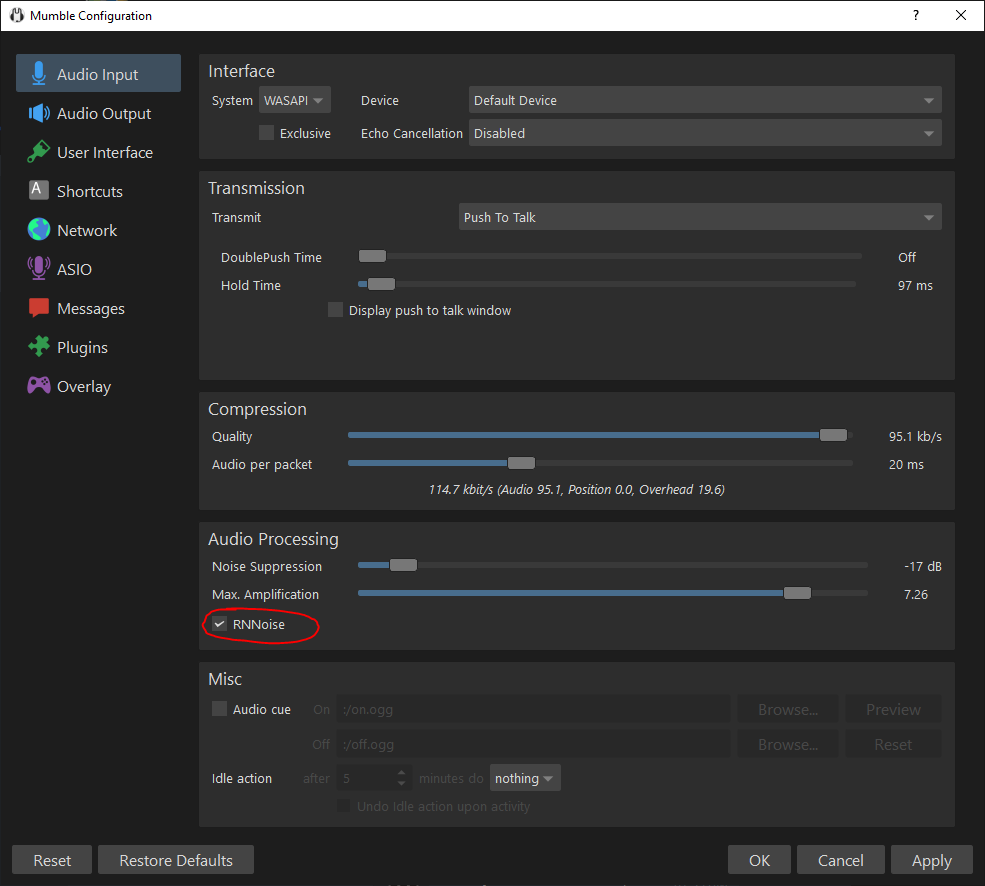
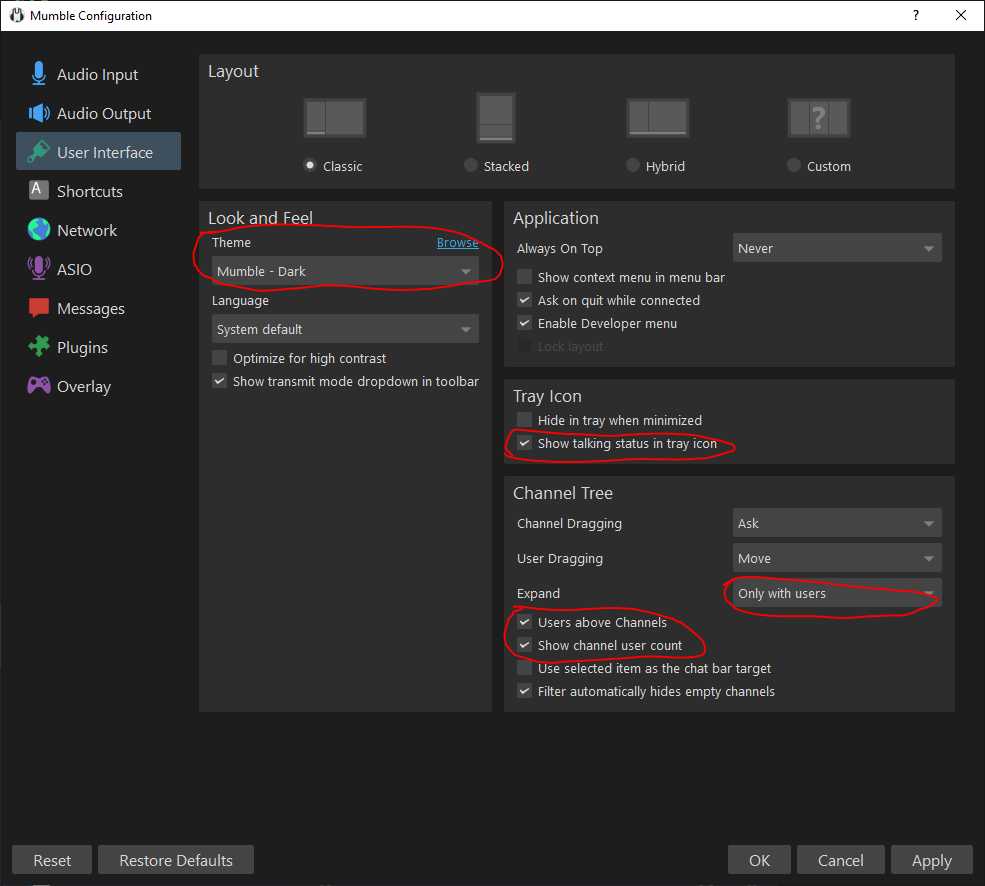
Appearance
Among the appearance settings, I find it most convenient to enable showing the talking status in the tray, showing users
above channels, expanding the channels that have users, and showing the user count in channels.
You can also enable the dark theme here.
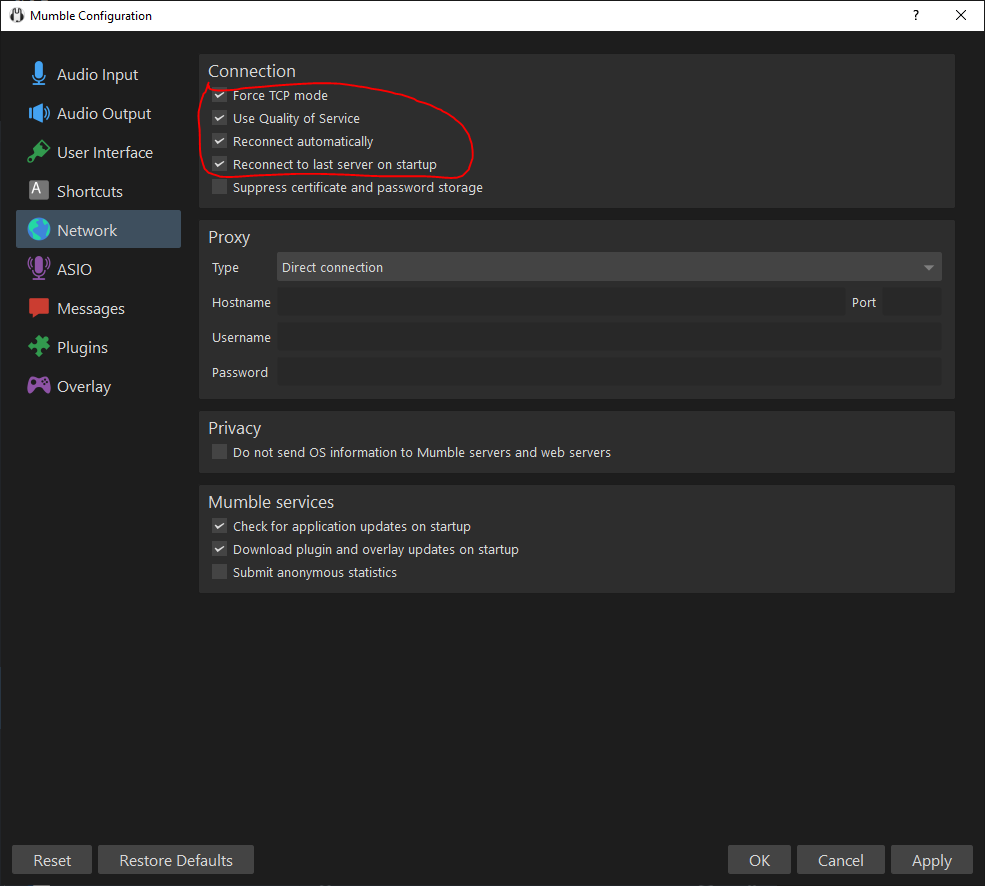
Connection and audio quality settings
If you are having problems, enabling TCP mode and QOS is worth trying. I also use automatic connection
and connecting to the last server on startup, so that I don’t have to choose where to connect every time.
Notification settings
In the “Notifications” section you can choose, to your own taste, which events you want to get notifications about. The default settings rarely need changing, but the ability to tune them to your liking just adds convenience.
Overlay
It is configured (and disabled) in the “Overlay” section. To increase or decrease the overlay size, scroll the mouse wheel over its preview. More fine-grained settings are available via right-click. I recommend the “Talking only” filter and a single column. Place the overlay the way you like it. Important: for the overlay to be displayed on top of the game, you have to start Mumble first, and only then the game.