Dual-booting Gentoo Linux and Microsoft Windows with rEFInd on a UEFI machine
Warning
This is a 2015 guide that assumes an almost fully manual kernel build and installation. By now many of these processes are automated, and this guide should not be treated as general recommended practice. I recommend reading the Gentoo Wiki for more up-to-date instructions.
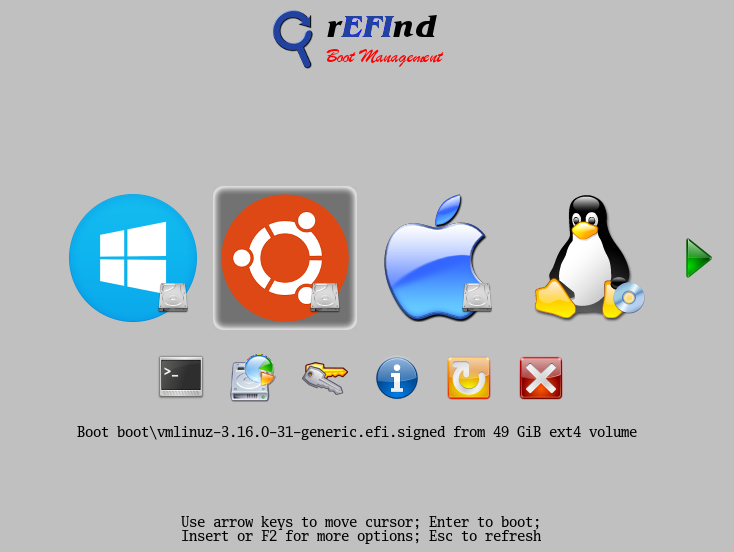
In the Gentoo Handbook, the chapter on bootloader configuration offers us several options:
- GRUB2 The familiar first version of GRUB was at some point replaced by the second one. The new version was created based on the PUPA project. It can work both in regular BIOS mode and in EFI mode.
- LILO An outdated bootloader that is hardly used anywhere anymore. Does not support EFI.
- The kernel as the bootloader The Linux kernel can be built with EFI Stub support, giving you the ability to boot straight into it, bypassing third-party bootloaders. Naturally, this option does not involve booting into Microsoft Windows (unless, of course, that is done through the BIOS/EFI boot menu, which requires additional actions from the user to choose the other OS).
However, these are not all the available options. As an alternative, you can also use native EFI bootloaders - for example, rEFInd. That is what this post is about.
Preface
First, as tradition goes, I want to remind you that some actions in this post (for example, mounting a partition in Linux)
require root privileges. However, in the examples below I will not include the sudo command. It is also worth noting that
this example makes some assumptions: Secure Boot is disabled; /boot is on a separate partition; the hard drive
has a GPT partition table; Microsoft Windows was installed before Gentoo Linux and the EFI partition already exists; no initrd is used with the kernel; plus some other unimportant details. None of this really matters once you understand the underlying principle, which
is quite simple. Moreover, it is important to understand that these principles will work on any distribution with minor changes.
Installation
The first half of the actions needed to organize booting in EFI mode is installing the bootloader. Its distribution can be taken from the project website. There we need to grab the latest version via the “A binary zip file” link.
Copying
Linux
First, let’s unpack the bootloader archive.
$ unzip refind-bin-0.9.0.zipIn the archive we will see installation scripts, instructions, a license and so on. Since we are going to install the bootloader
manually, only the refind folder is of interest to us. In it we will find the bootloader itself (refind_ia32.efi refind_x64.efi),
the driver directories (drivers_ia32 drivers_x64), a sample config (refind.conf-sample) and the utility directories
(tools_ia32 tools_x64).
$ cd refind-bin-0.9.0
$ ls refind
drivers_ia32 drivers_x64 icons refind.conf-sample refind_ia32.efi refind_x64.efi tools_ia32 tools_x64
Since our architecture is amd64, also often called x64, we can remove the unneeded files right away.
$ rm -rf refind/{drivers_ia32,refind_ia32.efi,tools_ia32}If you wish, you can also delete the unneeded OS icons in the refind/icons directory. Now we need to
mount the EFI partition. Most of the following actions require root privileges, so you can run sudo -i in advance.
The EFI partition is fairly easy to identify: most often it is 100 megabytes in size and its partition type/code is EF00.
# mount /boot

# mkdir /boot/efi

# gdisk -l /dev/sda
Number  Start (sector)    End (sector)  Size       Code  Name
   1            2048          598015   291.0 MiB   2700  Basic data partition
   2          598016          614399   8.0 MiB     EF02
-----------------------------------------------------------------------------
   3          614400          817151   99.0 MiB    EF00  EFI system partition
-----------------------------------------------------------------------------
   4          817152         1079295   128.0 MiB   0C01  Microsoft reserved ...
   5         1079296       327837695   155.8 GiB   0700
   6       327837696       328759295   450.0 MiB   2700
   7       328759296       330330111   767.0 MiB   0700  Basic data partition
   8       330330112       937699327   289.6 GiB   0700  Basic data partition

# lsblk
NAME                      MAJ:MIN RM   SIZE RO TYPE MOUNTPOINT
sda                         8:0    0 447.1G  0 disk
├─sda1                      8:1    0   291M  0 part
├─sda2                      8:2    0     8M  0 part
------------------------------------------------------------------
├─sda3                      8:3    0    99M  0 part
------------------------------------------------------------------
├─sda4                      8:4    0   128M  0 part
├─sda5                      8:5    0 155.8G  0 part /media/windows
├─sda6                      8:6    0   450M  0 part
├─sda7                      8:7    0   767M  0 part /boot
└─sda8                      8:8    0 289.6G  0 part /

# mount /dev/sda3 /boot/efi

# ls /boot/efi
EFI Temp
Let’s copy the bootloader to our EFI partition.
cp -r /home/skobkin/tmp/refind-bin-0.9.0/refind /boot/efi/EFI/Windows
First, unpack the rEFInd archive somewhere in advance. For example, let it be C:\tmp\refind-bin-0.9.0\.
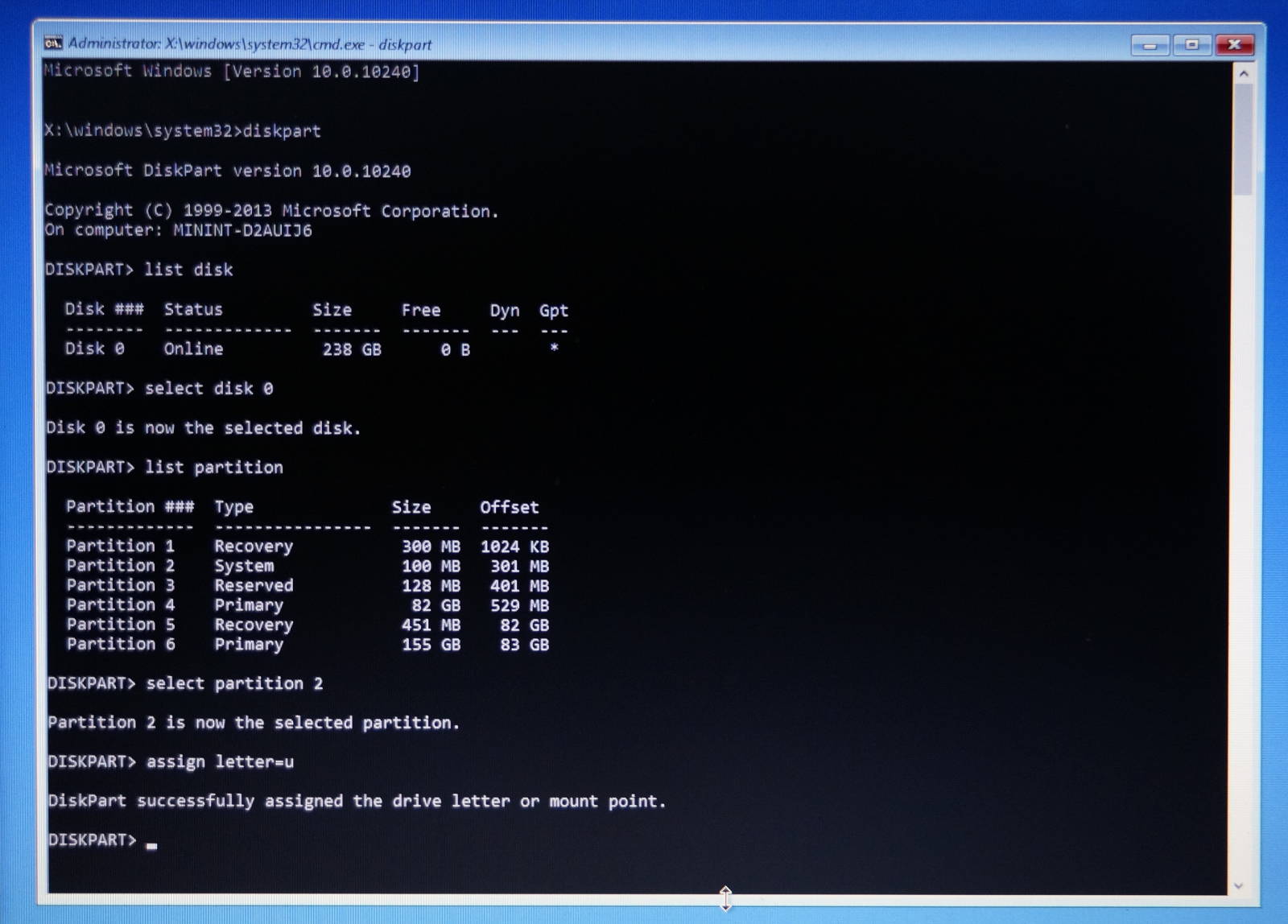
In most cases, Windows will prevent mounting the EFI partition, so the simplest option is to use a modern analogue of “safe mode with command prompt”. You can get there by choosing Restart in the shutdown menu while holding down the Shift key at the same time, then choosing “Troubleshooting” →
“Advanced options” → “Command prompt”. A command prompt opens before us, in which we need to perform the same actions as when copying in Linux, adjusted for the operating
system. First let’s mount the partition using the diskpart utility. It has a fairly intuitive text interface
with a command prompt, where the important thing to know is that there are generic commands list (print a list) and select (pick an item) for
entities such as disk (a physical disk) and partition (a partition). An example of mounting a disk:
diskpartThen, in the utility’s command prompt:
list disk
select disk 0
list partition
select partition 2
assign letter=u
We selected the second partition on the first disk and assigned the letter U to it. Now, assuming the pre-unpacked rEFInd is located at the path mentioned above, we copy it with the following command:
cp C:\tmp\refind-bin-0.9.0\refind U:\EFI\Configuration (Windows and Linux)
Now let’s copy the config.
cd /boot/efi/EFI/refind
cp refind.conf-sample refind.conf
And edit it. As you may notice, the config is quite well documented, so instead of simply copying the sample below I suggest familiarizing yourself with the settings.
# refind.conf

timeout 3
resolution 1024 768

showtools shell,memtest,gdisk,windows_recovery,about,reboot,shutdown,firmware
scanfor manual

default_selection "Gentoo Linux"

menuentry "Gentoo Linux" {
        icon /EFI/refind/icons/os_gentoo.png
        ostype Linux
        volume boot
        loader /vmlinuz-4.1.6-gentoo-skobkin
        options "root=/dev/sda8 ro"
}
menuentry "Windows 10 Pro" {
        loader \EFI\Microsoft\Boot\bootmgfw.efi
}
The settings are described here. For the simplest configuration only a few of them matter to us:
volume bootPoints to the partition where the kernel is located. For a reference in this form to work, the partition must have a label.loader /vmlinuz-4.1.6-gentoo-skobkinPath to the kernel file relative to the root of the partition above. If thevolumeoption is not specified - relative to the root of the EFI partition.options "root=/dev/sda8 ro"Path to the partition where the filesystem root is located. Depending on whether initrd is built into the kernel, it may become possible to specify the partition by UUID and label.
Activation
Now, in order for EFI to be able to launch our bootloader, we need to add it to the store of bootloader configurations. This can be done in several ways.
Windows
bcdedit
This option does not require third-party software and is performed, just like mounting the EFI partition in Windows, in the command prompt of the “Troubleshooting” screen (see copying in Windows). There we run two commands. The first creates a bootloader entry, and the second sets its name.
bcdedit /set {bootmgr} path \EFI\refind\refind_x64.efi
bcdedit /set {bootmgr} description "rEFInd boot manager"
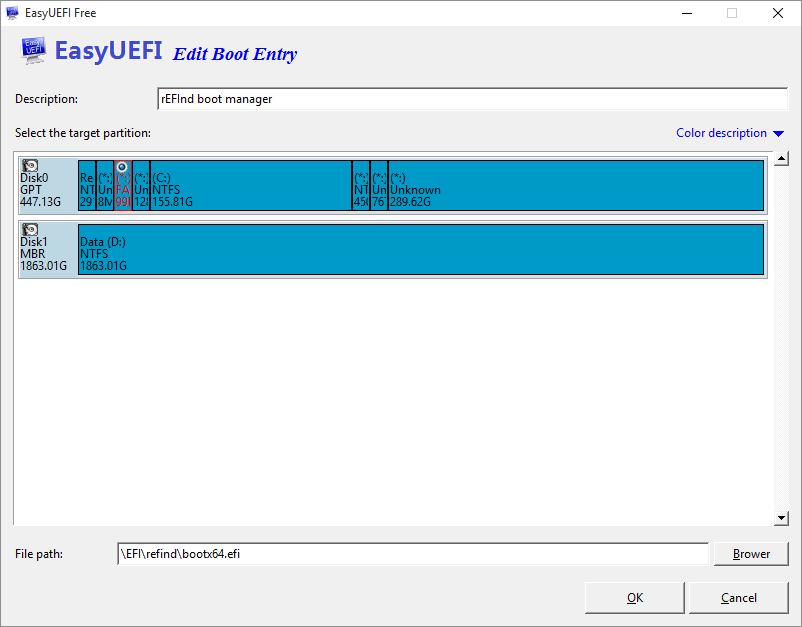
Easy UEFI
As a very simple alternative to bcdedit you can use the Easy UEFI utility, which lets you change bootloader settings right from within the booted Windows OS. You will need to create an entry for rEFInd, select the EFI partition and specify the path to the bootloader.
Linux
To register the bootloader from Linux, the system must already be booted in EFI mode. This can be achieved either by loading the kernel directly (if it has EFI Stub) from an EFI Shell, or by booting any LiveCD that runs in EFI mode. Let’s use the efibootmgr utility (available in the repositories of many distributions):
efibootmgr -c -l \\EFI\\refind\\refind_x64.efi -L "rEFInd boot manager"First boot
Now that you have finished, all that is left is to check whether “rEFInd boot manager” is in first place in the boot priorities of the BIOS (EFI) menu and, if not, fix that. If you did everything correctly, the bootloader will start and offer you to choose an OS to boot.