Installing Jenkins on Linux
Note
This article is outdated but has been kept for historical purposes.

At some point, almost any serious developer has to face a phenomenon such as continuous integration. One of the tools for organizing CI is Jenkins - a fork of Hudson. Let’s install it and perform the most basic configuration. I will give an example of installing it on Debian 7. This article is also suitable for installation on many Debian-family distributions. On others, some details will differ due to differences in the package management system.
Prerequisites
- A machine with a Debian-family distribution is available
- You have root privileges on that machine
- 1 or more GB of RAM In general, recommendations for the amount of RAM vary widely. Some recommend an amount “with headroom” of 16 gigabytes or more for large projects, while others get by with 512 megabytes. I personally settled on 1 gigabyte as a starting point, since Jenkins is written in Java, and software written in that language loves to eat memory.
Installation
Personally, I perform the whole installation process as the root user, but since this practice is not recommended, you can
simply prefix the commands with sudo. Or you can step over to the dark side of the Force and do, for example, sudo -i. First,
let’s add the repository PGP key and the repository itself to our system:
wget -q -O - http://pkg.jenkins-ci.org/debian/jenkins-ci.org.key | apt-key add -
echo deb http://pkg.jenkins-ci.org/debian binary/ > /etc/apt/sources.list.d/jenkins.list
update the package list in the APT cache
aptitude updateand install Jenkins itself
aptitude install jenkins
Jenkins dashboard after installation
After installation it starts automatically and you can go straight to the web interface, which lives on port 8080 of your server. As you may notice, it is open to the outside world and not protected in any way. It’s time to configure authentication and access rights.
Initial configuration
Here you need to decide how you want to authenticate in the system: through accounts stored in Jenkins itself, or through an external service (Bitbucket, Github, etc.). If you plan to use an external service, you need to install its plugin. In the case of Bitbucket, that is the “Bitbucket OAuth Plugin”. If not, just skip the plugin installation and read on.
Installing the plugin using Bitbucket as an example
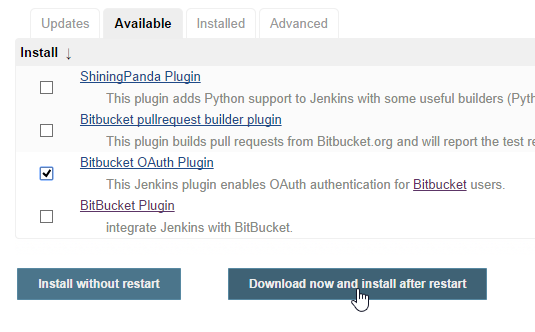
To install the plugin, go to “Manage Jenkins” - “Manage Plugins” - “Available” and select the plugin you need. I recommend using the filter for a quick search. We click “Download now and install after restart” for a clean plugin installation with a restart. In the installation window that appears, check the box “Restart Jenkins when installation is complete and no jobs are running” and wait for the installation with a reboot. The page should refresh by itself. After the installation you can return to the main page and continue configuring.
Configuring authentication and access rights
Our Jenkins is still available to the first person who walks in, and it warns us about it with the message
Unsecured Jenkins allows anyone on the network to launch processes on your behalf. Consider at least enabling authentication to discourage misuse.
So let’s configure the access rights and the login mechanism. For this we need to go to “Manage Jenkins” again, and there click the “Setup Security” button in the upper right corner. In the settings window that appears, enable the security settings with the “Enable security” checkbox. Next we need to choose how user authentication will happen. By default several methods are available. We are interested in “Jenkins’ own user database” if we want to log in with credentials stored in Jenkins itself, or “Bitbucket OAuth Plugin” if we want to log in through Bitbucket.
Authentication through the built-in Jenkins database
There is not much to configure here. Though perhaps it is worth forbidding user registration by unchecking “Allow users to sign up”.
Authentication through Bitbucket
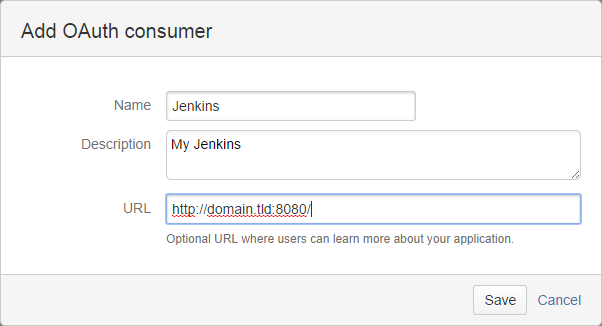
For this method we need to go to our Bitbucket account settings and register an application. To do this, go to your account page, click “Manage account” and go to the “OAuth” section. Here we add an application with the “Add consumer” button. Then we get the “Key”, which we put into “Client ID”, and the “Secret”, which we copy into “Client Secret”.


Configuring access rights
Now that we have configured the login, we need to lock out strangers. Several methods can be used for this, the simplest being “Matrix-based security”. The main thing here is to do two things:
- Give the “Anonymous” user access to the “Read” action in the “View” category, otherwise Jenkins may not work correctly
- At the same time, without saving the settings beforehand, create the user under which the system will be administered from now on, otherwise after applying these settings you will not be able to log into the Jenkins interface. If you authenticate through an external service - specify your username on that service

Setting access rights during initial configuration
Double-check the settings and click the “Save” button.
First login or user creation
After saving the settings you will either get the login form or be redirected to the external authentication service.
Login with the built-in user database
Jenkins will direct you to the login form. You don’t have a user yet, so remove the extra part from the URL and go to the root of the web interface - you will be shown the user creation form.
Login through Bitbucket
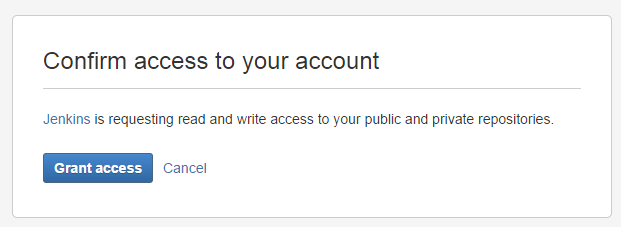
Confirming access through Bitbucket
With Bitbucket or another external service there is no need to register, so you only need to confirm on that service that you trust the application. After that you will return to the system as a full-fledged administrator (if, of course, you gave your account such rights).
Regaining access
If you made a mistake while configuring access rights and Jenkins did not let you in, don’t panic. You can turn off security in the config:
nano /var/lib/jenkins/config.xmlIn the file that opens, replace the line
<useSecurity>true</useSecurity>with
<useSecurity>false</useSecurity>and restart Jenkins:
service jenkins restartNow your Jenkins is open to the whole world again. Go back to configuring the login options and access rights.
What’s next?
Next you can start installing the plugins your projects need and creating jobs. But that is for later. UPD: Automating builds on a Bitbucket commit.