Configuring and optimizing Windows 7 and Windows 8 for an SSD.
Warning
This is a historical article from 2012 about Windows 7/8 and the SSDs of that era. For modern versions of Windows and modern SSDs, some of the recommendations are outdated, and some settings may degrade the performance, reliability or convenience of your system.
At this point the material is an archival note rather than a current how-to.
Everyone, hopefully, knows that SSD drives are fast but sensitive to frequent writes. Consequently, to make an SSD last as long as possible as a system drive, you can minimize the write load on it. This is achieved through various system tweaks, which is what I will look at in this post. An important note. Before choosing Windows optimizations, it is recommended to read this article. Choose the optimizations according to your needs. There is no need to apply them all. For an inexperienced user, applying absolutely all of the optimizations can cause a drop in performance and other system problems. If you don’t know exactly what you are doing — it is better not to do it. Here are some settings that can help extend the life of an SSD and, possibly, increase performance:
Switch the SATA controller to AHCI mode in the BIOS settings. If you haven’t done this for Windows 7 with SATA drives yet, it is long overdue, especially with an SSD. Switching this mode on an already installed Windows system will render it unbootable. For switching on a live system, it is worth reading this guide.
Enable write caching on the disk. In Device Manager, select the SSD and configure it accordingly:
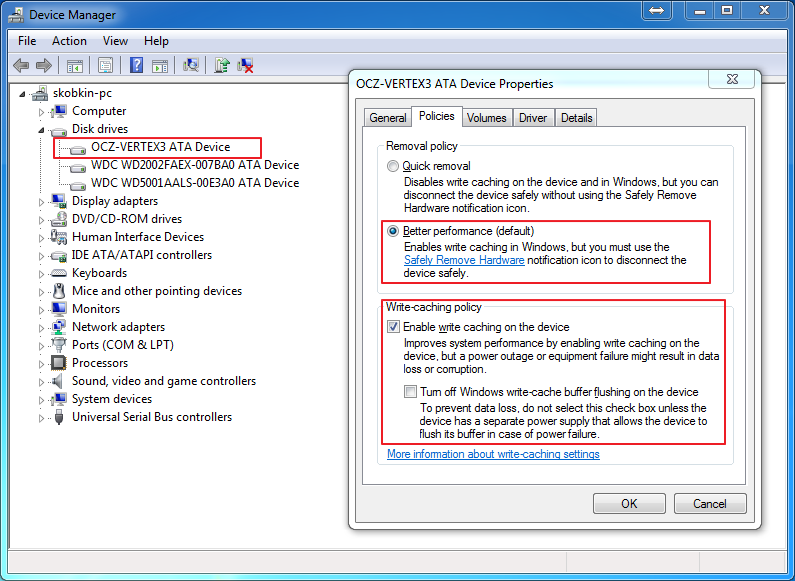
Those who have a UPS can enable the second option as well. Not having one, I left it off.
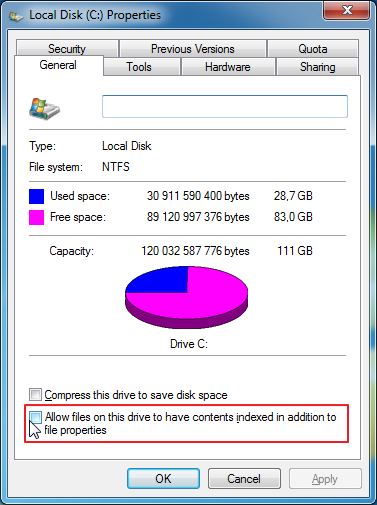
- Turn off search indexing. Attention. This optimization only makes sense if you rarely use Windows search. In the properties of the partition located on the SSD, uncheck the box that allows indexing.
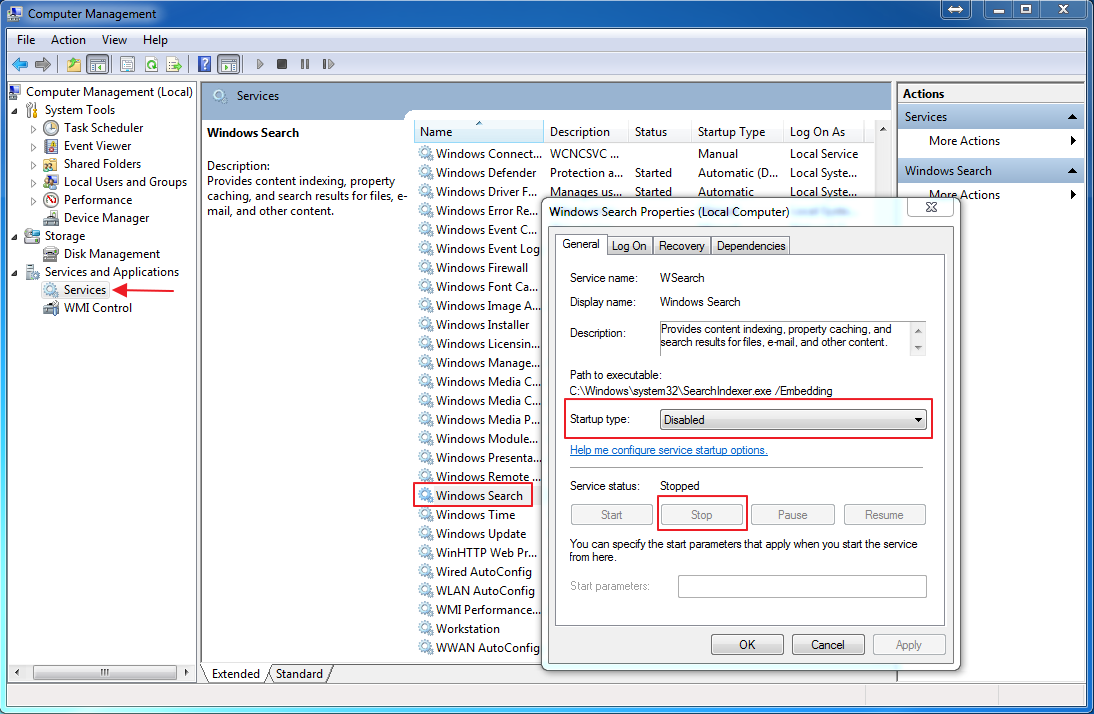
Right-click on “Computer”, choose the second item (“Manage” in the English version), and disable the Windows search service there.
If Microsoft Live Desktop or Google Desktop are installed on the computer, it is useful to remove them, because they regularly do their own indexing.
- Turn off scheduled defragmentation. Newer systems like Windows 8 should adapt to SSDs by default. Therefore it is not recommended to disable defragmentation, since on these systems a TRIM optimizer will be used for SSDs instead of the defragmenter. Open the Windows defragmenter via the Start menu and disable scheduled operation there.
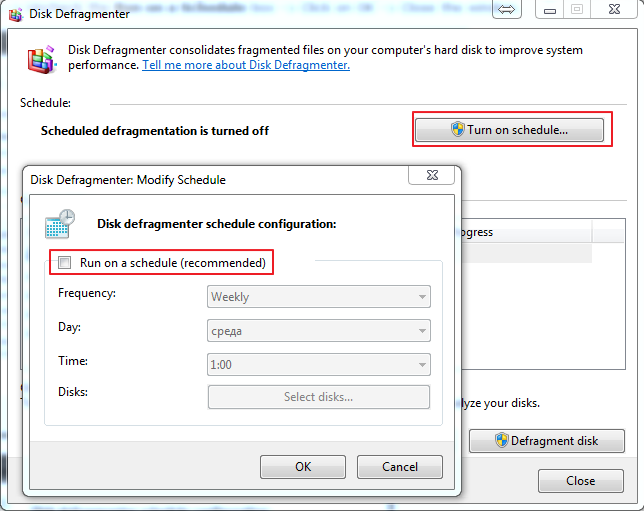
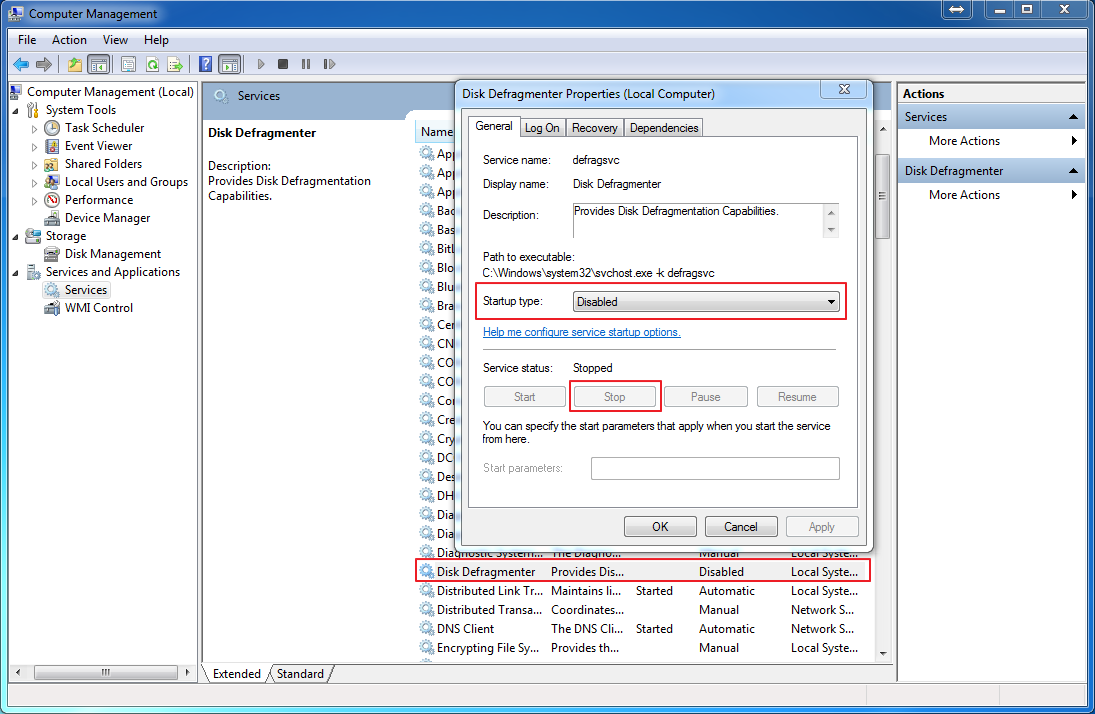
- In the same place where you disabled the indexing service, disable the defragmentation service.
Disable Prefetch and Superfetch. Windows 7 is designed for SSD drives and disables Superfetch for them. If you want to make sure this is really the case, you can check the following values in the registry: the key HKEY_LOCAL_MACHINE\SYSTEM\CurrentControlSet\Control\Session Manager\Memory Management\PrefetchParameters, the value EnableSuperfetch must be equal to zero, and the value EnablePrefetcher must also be equal to zero.
Disable the page file. An SSD is best used with a large amount of RAM. In that situation you can disable the page file, which slows the system down and wears out the SSD. Right-click on “Computer”, choose Properties, then “Advanced system settings”, go to the “Advanced” tab and choose the performance settings. There, on yet another “Advanced” tab, go into the virtual memory settings and remove the page file from all drives.

After disabling the page file on each partition, don’t forget to click the “Set” button. If you have little RAM and really need the page file, it is better to move it to a partition that is not on the SSD. Applying these settings may require a reboot, about which the system will notify you.
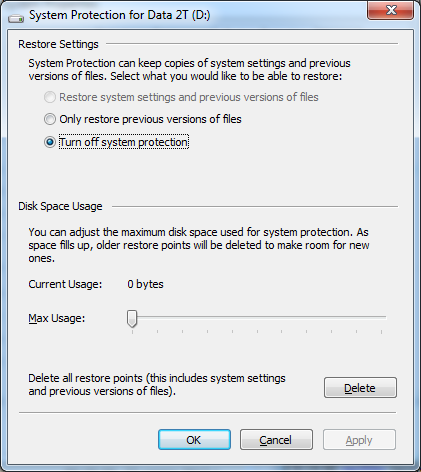
- Disable System Restore. Not recommended for users who actually use System Restore. The recommendation applies to those who use partition images or third-party software. In the same “Advanced system settings”, select the “System protection” tab and disable reservation on all drives (or only on the SSD).
- Disable hibernation. In the “Start” menu, type cmd, right-click the cmd icon and choose “Run as administrator”. Enter the following command:
powercfg -h off- Enable TRIM. Windows 7 and 8 should enable TRIM for SSDs, but this can be checked. To query the status or set the TRIM usage parameters you need a command prompt with administrator rights, just like for disabling hibernation. Query the current status:
fsutil behavior query disabledeletenotifyIf the value is zero, TRIM is enabled. If not, it has to be enabled:
fsutil behavior set disabledeletenotify 0- Configure the file system. To increase performance and the lifespan of the SSD, you can disable recording of the file last access time. Open regedit (Start->Run, or simply the WIN+R hotkey) and in the key HKEY_LOCAL_MACHINE\SYSTEM\CurrentControlSet\Control\FileSystem change, or, if it is missing, create a DWORD value “NtfsDisableLastAccessUpdate” equal to one. This can also be disabled from the command line:
fsutil behavior set disablelastaccess 1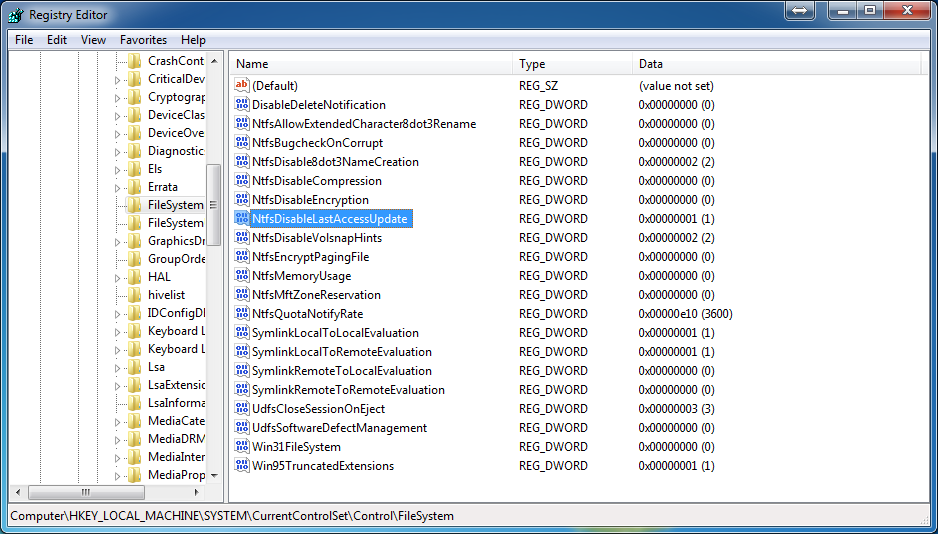
If the system does not use old DOS applications that require old short file names, you can disable storing DOS 8.3 format file names. For this, set the NtfsDisable8dot3nameCreation parameter equal to one. Increasing the memory available to the file system by setting NtfsMemoryUsage (DWORD) to “2” is also useful.
- Move the browser cache to RAM or another HDD. Opera simply allows you to disable the disk cache:
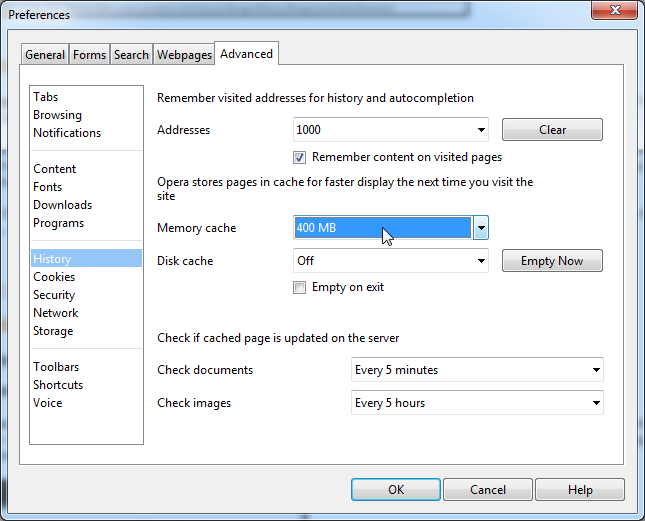
Firefox requires a slightly more complex tweak: type about:config in the address bar, double-click browser.cache.disk.enable and switch it to False. Right-click anywhere, choose New, Integer, create the option “browser.cache.memory.capacity” and enter the option value in kilobytes: 32768 for 32 megabytes, 131072 for 128 megabytes, and so on.
- Move the temporary folders to another partition. In “Advanced system settings”, on the “Advanced” tab, choose “Environment Variables” and set the TMP and TEMP variables for both the user and the whole system so that they point to a directory located off the SSD.

After that, you can clean out the directories where the temporary files used to live.
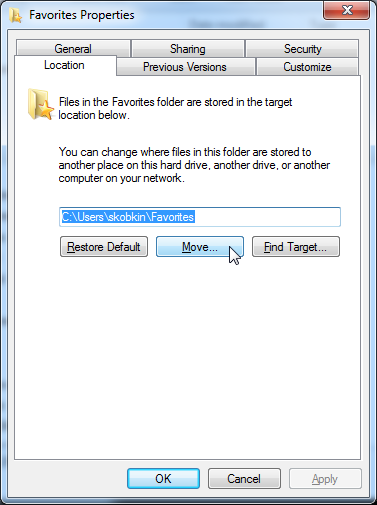
- Move the user folders to other drives. Practically all user folders, such as “My Documents”, “Desktop”, “My Music” and so on, can be moved to other drives. For this it is enough to create the corresponding directories on another drive, then go to C:\Users%Your_Username%, right-click the folder you need and move the folder to the other location. After choosing the target directory, the system will offer to move the contents there as well, so you don’t have to copy anything manually.
- If you have a lot of RAM and want to speed up the programs that use temporary files, or your browser cannot be configured to use only memory for its cache, you can move the temporary files and the browser cache to a RamDisk. If you move the temporary directories to a RamDisk, you need to take care that it is large enough for unpacking large installation packages and is available right after the system boots (before user login). If the RamDisk is not available before login, installing updates with a reboot may end in an error. Also, not all RamDisks provide a noticeable performance boost.
To find out the health of your SSD, you can look at its S.M.A.R.T. information using special utilities from the manufacturer or universal tools like SSD Life. For more exotic tweaks, you can read the discussion on Habrahabr. And for extra joy, you can read the post “How I killed an SSD in two months”. UPD: It may also be useful to read this. UPD2: To avoid falling into total paranoia while waiting for your SSD to die within a month, it is recommended to read this.