KVM VPS on Proxmox behind NAT with port forwarding and DHCP
Often, when a server is rented from some hosting provider, it comes with one or several IP addresses. If the server is “bare-metal” and all services are installed directly on the OS, sharing resources among themselves as best they can, this problem may never arise. But if a clean separation of the server’s resources by means of virtualization is planned, then at some point you may find yourself needing either additional IP addresses, or a NAT setup with port forwarding. Provided, of course, that the services face the outside world.
Note
Post updated on 07.03.2023 to bring it up to date.
Warning
This post has partially aged. The principles described in it still work — PVE 9+ was recently configured in exactly the same way. But it should not be used as a step-by-step guide, since various details, such as the firewall persisting across reboots, have changed, and some of the settings are now better done by means of PVE itself or in other files.
Network bridge
Setting up NAT for several virtual machines is fairly simple. Proxmox supports creating network bridges “out of the box” (although it is more convenient to do this directly in the config file, since PVE eats the comments and changes the formatting). For our purposes, we will create the bridge vmbr1 with the IP address 192.168.100.1 and the standard netmask 255.255.255.0, which puts all 256 addresses at our disposal.
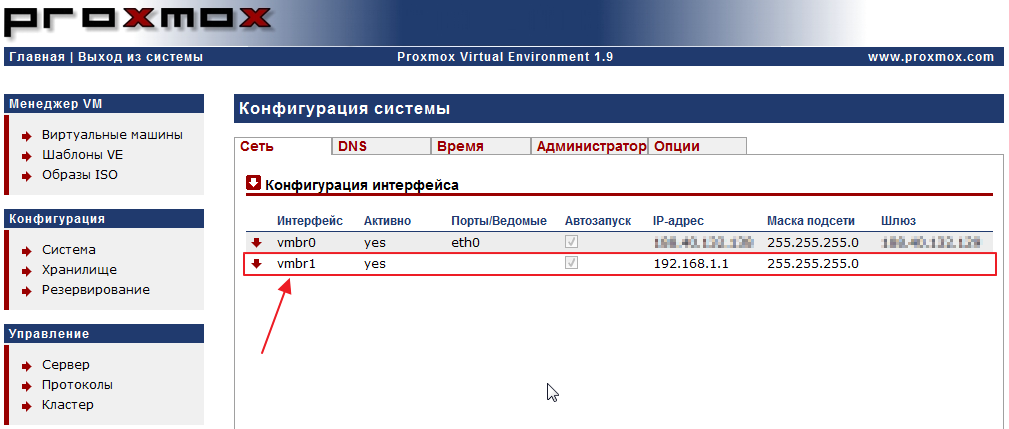
Once it is working, open /etc/network/interfaces and slightly edit the configuration of the created bridge:
auto vmbr1
iface vmbr1 inet static
        address 192.168.100.1
        netmask 255.255.255.0
        bridge_ports none
        bridge_stp off
        bridge_fd 0
        post-up echo 1 > /proc/sys/net/ipv4/ip_forward
        post-up iptables -t nat -A POSTROUTING -s '192.168.100.0/24' -o vmbr0 -j MASQUERADE
        post-down iptables -t nat -D POSTROUTING -s '192.168.100.0/24' -o vmbr0 -j MASQUERADE
Here we allow the virtual machines on vmbr1 to access the internet through vmbr0. It is worth noting that the last two lines, which add and remove the firewall rules, may differ, because in my case the main interface of the server is the vmbr0 bridge and the network is configured on it. In my setup it is used for several virtual machines to get real IP addresses from the external gateway. If your network is configured on eth0, then it is eth0 that should be there instead of vmbr0. Otherwise there is no difference at all.
Also, ip_forward can be enabled in /etc/sysctl.conf.
net.ipv4.ip_forward=1Port forwarding
Next, suppose certain ports need to be forwarded to the right virtual machines. This can be done with iptables:
iptables -A PREROUTING -t nat -i vmbr0 -p tcp -d %ext_ip_on_vmbr0% --dport %ext_port% -j DNAT --to %int_ip_on_vmbr1%:%int_port%Where:
%ext_ip_on_vmbr0% — the external IP address located on vmbr0. If this parameter is omitted, the port will be forwarded from all addresses on that bridge.%ext_port% — the external port through which the server will be accessed from the internet.%int_ip_on_vmbr1% — the internal IP of the virtual machine on vmbr1.%int_port% — the internal port on which the service inside the virtual machine will run.
And after applying the rules for the needed ports, you can check that everything is correct:
iptables -L -t nat
Chain PREROUTING (policy ACCEPT)
target prot opt source destination
DNAT tcp -- anywhere xxx.yyy.ru tcp dpt:33122 to:192.168.100.2:22
DNAT tcp -- anywhere xxx.yyy.ru tcp dpt:33222 to:192.168.100.3:22

Chain OUTPUT (policy ACCEPT)
target prot opt source destination

Chain POSTROUTING (policy ACCEPT)
target prot opt source destination
MASQUERADE all -- 192.168.100.0/24 anywhere
Saving the firewall rules
If everything is correct — all that is left is to make sure the rules are restored on reboot.
The new way
Use the iptables-persistent package.
The old way
For this you can use iptables-save and the network initialization scripts.
iptables-save > /etc/iptables.up.rulesLet’s create a rule-loading script:
nano /etc/network/if-pre-up.d/iptablesAnd write into it the command that loads the rules from the previously saved file:
#!/bin/bash
/sbin/iptables-restore < /etc/iptables.up.rules
Don’t forget to make this file executable:
chmod +x /etc/network/if-pre-up.d/iptablesA simpler alternative is to install the iptables-persistent package, which will save the rules itself on shutdown or reboot and load them again at boot. More details — here (in English).
That’s it. Port forwarding works.
Network configuration in the guest OS
Manual configuration (static)
The simplest option is to set the virtual machine’s address manually. In the simplest cases, you can make use of this.
To do this, specify the following parameters in the guest OS settings:
# The primary network interface
allow-hotplug eth0
iface eth0 inet static
address 192.168.100.2
netmask 255.255.255.0
gateway 192.168.100.1
address - the IP address of this machine. Naturally, every machine in this subnet must have a different one.
netmask - the subnet mask. Exactly the same as the one specified when creating the network bridge.
gateway - the IP address on which the host itself sits, through which routing to the external network will take place.
Dynamic configuration (DHCP)
To avoid configuring the network manually, you can install a DHCP server. This will be especially useful if the subnet will contain many virtual machines — there will be no need to configure the network on each one by hand.
The new way: dnsmasq
Install the server:
apt-get install dnsmasqConfigure the settings in /etc/dnsmasq.conf:
# Disable DNS
port=0
# Listen NAT interface
interface=vmbr1
# Strictly binding to the bridge
bind-interfaces
# Optionally set a domain name
#domain=example.org
# Set default gateway
dhcp-option=3,192.168.100.1
# Set DNS servers to announce
dhcp-option=6,8.8.8.8
# Push default route
#dhcp-option=121,0.0.0.0/0,192.168.100.1
# Dynamic range of IPs to make available to LAN PC and the lease time.
# Ideally set the lease time to 5m only at first to test everything works okay before you set long-lasting records.
dhcp-range=192.168.100.10,192.168.100.100,720h
# Provide IPv6 DHCP leases, the range is constructed using the network interface as prefix
#dhcp-range=::f,::ff,constructor:enp0s0
# If you’d like to have dnsmasq assign static IPs to some clients, bind the LAN computers NIC MAC addresses:
#dhcp-host=aa:bb:cc:dd:ee:ff,192.168.100.50
#dhcp-host=aa:bb:cc:ff:dd:ee,192.168.100.51
The old way: isc-dhcp-server
Warning
Addition of 07.03.2023
The use of this server is no longer recommended. Over the years it has performed poorly, causing various problems, and the last time it was installed it simply refused to work at all.
Install the server:
apt-get install isc-dhcp-serverIn the /etc/dhcp/dhcpd.conf file most of the parameters can be left unchanged, but the authoritative; directive needs to be uncommented. It may also be useful to increase the address lease time with the following parameters:
default-lease-time 40320;
max-lease-time 40320;
And, most importantly, the settings of our subnet need to be described:
# NAT subnet on vmbr1
subnet 192.168.100.0 netmask 255.255.255.0 {
 range 192.168.100.2 192.168.100.254;
 option routers 192.168.100.1;
 option domain-name-servers 8.8.8.8, 8.8.4.4;
}
Here range is the range of addresses the DHCP server will hand out. domain-name-servers are the DNS servers that will be used on the guest machines. In this example, that is Google Public DNS.
Next, in the /etc/default/isc-dhcp-server file, we configure which interfaces our server will listen on:
# On what interfaces should the DHCP server (dhcpd) serve DHCP requests?
#       Separate multiple interfaces with spaces, e.g. "eth0 eth1".
INTERFACES="vmbr1"
For extra reliability, you can also shield it from external requests with a firewall.
After the configuration, restart the DHCP
service isc-dhcp-server restartConclusion
The setup is finished. The guest machines will now receive their network settings automatically during OS installation.