Opera 11 Review. Part One
Note
This is a copy of my review written for the Softkey resources
Note
This is a historical review of Opera 11. The described features, Opera Unite and the links to old Opera services belong to that era of the browser and may no longer exist.
After the browser was sold, the former team has been working on Vivaldi.
If you live in the CIS and used the Internet over a dial-up modem - you have certainly heard of the Opera browser. Back then it earned a reputation as a good alternative to the slow and resource-hungry Internet Explorer, making surfing the Web easier. Time does not stand still; the endless race for support of internet technologies, page load speeds and interface beauty goes on. Every search engine offers browsers with its own search, social networks uniting millions of users keep growing. The browser has already become part of our lives, a daily tool for practically any modern person. Let us see what Opera can offer us today. Introduction The development of this browser has been going on for more than fifteen years. Only Netscape Navigator has such a rich development history, but we will not see new versions of it, as the project was shut down in 2008. Until 2000, Opera was a paid program. In that year the Shareware license gave way to free distribution: in Opera 5, instead of a trial period and paid registration, a small advertising banner appeared. The ads could be removed by purchasing a license. This went on until the turning point - the release of version 8.5 in September 2005. Opera for personal computers became completely free, and the advertising was removed. Despite all the changes to the ways the browser was distributed and licensed, Opera was always one of the innovator browsers, always bringing in something new and more convenient that was borrowed by other products. From its very first version, back then still MultiTorg Opera 1.0, the browser already had a multiple document interface - several sites opened in one browser window. And that was in 1995. Later the decision was made to switch to tabbed navigation between open pages. Starting with the fourth version, a mail client appeared in Opera. With the seventh version the browser switched to a new engine and was practically rewritten; sites began loading and working faster in it. The eighth version brought many technical changes, simplified the user interface and added a presentation mode. The new interface delighted users in the ninth version. In version 9.2, “Speed Dial” was introduced. Version 9.5 brought a new feature, Opera Link, which allows synchronizing bookmarks, Speed Dial and other personalized browser features between the devices it is installed on. With the tenth version, Opera switched to a new engine again in order to speed up its work and improve support for international web standards. In this review I will tell you about the new version of the program - Opera 11. Its active development was in full swing quite recently, and the developers kept sharing the new features and plans for further development in their blog. Main features and interface
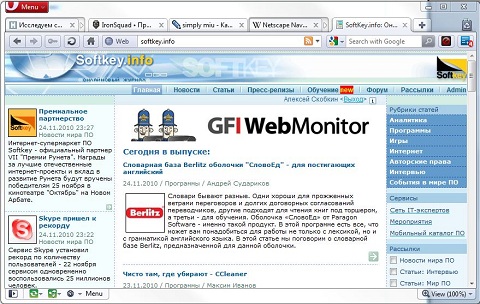
The interface of Opera 11 is made in a modern style; in full-screen mode the tabs are located in the window title bar. The program supports integration with Windows 7. Let me stipulate in advance that only the most interesting functions and capabilities will be described, because covering everything Opera can do would not fit even in two articles, and besides, similar functions exist in other browsers.
Browser This is Opera’s main function, and it has existed since 1994 - at the very beginning of development. As for features, apart from the constant drive toward speed and better support for web standards, there is nothing special to note. A browser is a browser. It works with tabs, supports various display settings, quick disabling of image display (or showing only already loaded ones), zooming, search from the address bar, editing pages and applying the changes on them, built-in blocking of ads and pop-ups and many other functions typical of a browser. Moreover, since the tenth version Opera passes the Acid3 test with 100 points out of the possible 100.
Mouse gestures This function was introduced in the fifth version and still has not appeared in other browsers (extensions excepted). Even though few users know about this feature, it really is one of the main conveniences of this browser. Gestures in Opera are simple: hold down the right mouse button, then move the cursor in the desired direction. Here is the list of the main gestures:
- Left - the same as the “Back” button on the browser panel.
- Right - the same as “Forward”.
- Down - open a new tab, or open a link in a new tab, if the click was on a link.
- Up - stop loading the page.
Password manager This useful function appeared in the seventh version of Opera. After you enter a site’s password, the program offers to save it. If the user agrees and the password is saved, then the next time the login and password fields will be highlighted.
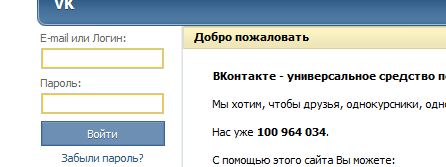
To log into a site without typing the password manually, you can click the key icon on the panel (it appears when a saved password exists for the site). You can also use gestures and hotkeys - the right gesture or CTRL+Enter.
Content blocking This function appeared in the ninth version of the browser. It allows configuring blocking of images, Flash and other content. With enough ingenuity you can set up a full-fledged filter against any advertising. If you need to block a certain banner, right-click on the page and select “Block content”, then click on the objects you want to block and confirm the choice.
Site settings Introduced in the ninth version. It became possible to set parameters for each site: style sheets, UserJS, character encodings, cookies, geolocation and other parameters.
Themes (skins)
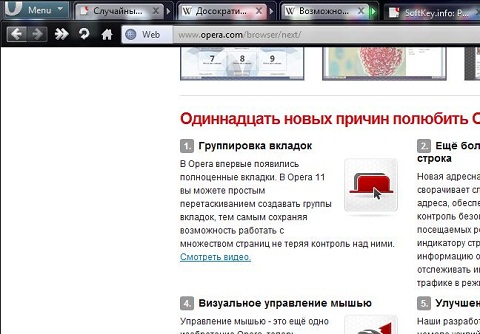
The ability to change the look of the program to your own taste has long attracted users. In Opera you can change the appearance of all controls. In the appearance settings you can download and install many themes that vary the look of the browser. A catalog of themes can also be browsed on the Opera website.
Trash can On the tab bar there is a button with which you can see which sites were visited during the session and closed afterwards. This way you can reopen a site that was closed accidentally. The whole history of working with the tab is preserved; going back and forward remains available.
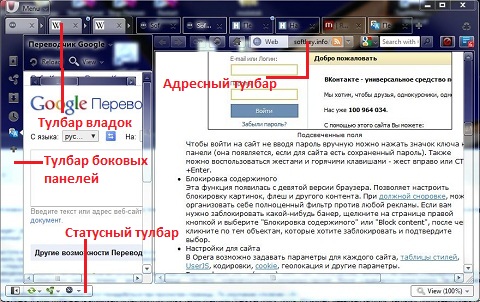
Toolbars and panels This function appeared in the sixth version of Opera. Opera has various toolbars:
- Main toolbar. It hosts access buttons similar to the “File” menu or, in Opera’s case, “Page”. Disabled by default.
- Bookmarks toolbar. Favorite bookmarks can be kept right on the panel in the place you want, ready to be opened at any moment. Disabled by default.
- Tab toolbar. It hosts the tabs with open sites and the “Trash can”.
- Status toolbar. Addresses are displayed there when hovering over links; it also holds the indicator buttons controlling Opera Link, Opera Unite, Opera Turbo, the button for showing panels and the site display settings.
- Address toolbar. Here you find the address bar and the “Back”, “Forward”, “Home page”, “Reload” control buttons, the password manager button appears here, and the search bar is displayed. Also, in the new version, extension buttons are shown here.
- Navigation toolbar. It holds various service buttons that may duplicate some menu items. Disabled by default.
- Panels toolbar. Another clever find of Opera’s. This toolbar offers quick access to Opera functions such as search, mail, the RSS reader, the download manager, bookmarks, Opera Unite applications, browser history, the channels and servers of IRC chats, the contacts manager, window management, notes and more.
Users can change the settings of all the panels, move them around, add elements to them. For example, to your own taste you can place the tab toolbar at the side of the window, which can be handy for owners of widescreen monitors. The user can also enable and disable any toolbar. In addition, any link can be placed on any toolbar, and if you drop a link onto the side panels toolbar you can set up quite interesting things, for example add a translator there.
Opera Link This unquestionably useful innovative function appeared in version 9.5. Thanks to it, the user can be sure that wherever and whenever they install their browser, they will be able to access their bookmarks, their Speed Dial page with favorite sites, their notes, the history of typed site addresses, the list of search engines and the content blocking rules. Even if your favorite browser is unavailable, all of this information can be accessed on the Opera Link site. To start using this function, you need to register in the Opera Link menu or on the Opera site. If you have already registered on one of the Opera sites, you can use the username from that registration to log in from the browser. As a pleasant bonus - Opera products for mobile (and not only) platforms also support Opera Link. This means that if you install Opera Mini or Opera Mobile on your phone or communicator, your bookmarks, Speed Dial and typed address history will always be with you. In terms of convenience, Opera has no equals here.
Opera Unite This interesting tool, not known to everyone, appeared in Opera 10.10. Any Opera user can easily enable their own tiny Opera Unite web server. You can install Unite applications on this server from the Opera site. With Unite applications the user can create a gallery of their own pictures and photos, share their music collection with everyone with online music playback, create a chat, a file sharing service or stream the image from their webcam to the Internet.
Opera Turbo A technology that appeared in the tenth version of Opera. It is intended for surfing the Web over a bad, slow or expensive metered connection. It works quite simply: all information exchange goes through special Opera servers, where all the information is compressed with an efficiency of up to 80% and only then passed on to the user’s computer, which minimizes traffic exchange and saves money. The function can be very useful to owners of 3G\EDGE modems with metered plans.
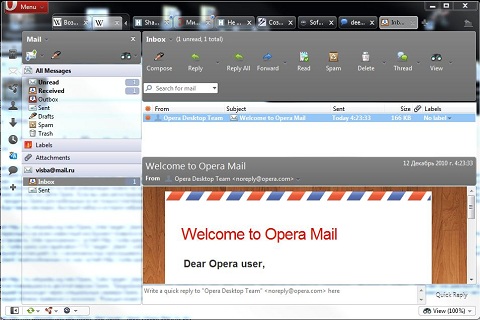
The mail client has existed in Opera since version 4.0. It is now combined with the news client and the RSS aggregator. Opera Mail supports the popular mail standards POP3, IMAP, SMTP, ESMTP, newsgroups, Atom and RSS. The client can be configured for any mailbox on popular services: “Yandex”, Google, Mail.ru and others.
- IRC chats

Even though IRC has long fallen out of fashion, Opera still supports this kind of chat. This functionality appeared as part of the Opera Mail client.
The continuation and a review of the new features - in the next article. This review was prepared for Softkey.info