AntiVir Professional Review
Note
This is a copy of my review written for the Softkey resources
Warning
This review covers an old version of Avira AntiVir Professional and reflects the state of the antivirus market at the time of publication. Do not use it as current advice on choosing security software.
There are quite a lot of antivirus solutions in the software world - and that is understandable, these days it is simply impossible to work on a computer without a good antivirus! Every antivirus vendor tries to win over new clients with various goodies, be it a pretty interface, a cheap license, bonus programs, eloquent articles in magazines and other marketing tricks. So let us take a look at what the budget antivirus solution from Avira - AntiVir Professional
- is like. Hardly anyone these days can afford to work under Windows without an antivirus. And justifiably so - computer viruses await the user everywhere: on social networks, in messengers (ICQ, Jabber, MSN and the like), on file sharing services, CD\DVD discs, flash drives and very many other places. After picking up a Trojan, your computer will hand over your personal information, the credentials of your social networks and communication tools and much more. Or it may become part of a huge botnet participating in attacks on servers or spreading spam. One such defender against information threats is Avira AntiVir Professional. This product is paid, however Avira provides the option to get a free 30-day trial key. You can do this on the official website.
Installation

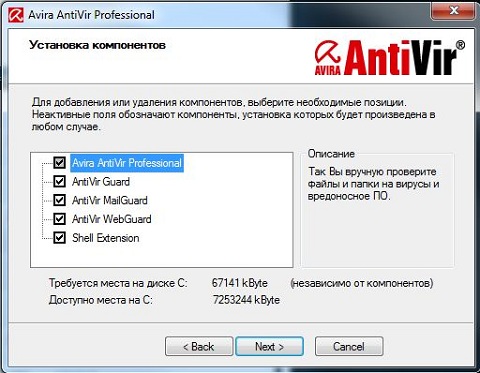
The standard installer includes support for multiple languages, including Russian. Depending on the type of installer (online or offline, for installation without internet), either the download of the latest antivirus version will begin, or you will immediately be offered a choice between a full and a custom installation.

In the case of a full installation, the user is asked only the bare minimum of questions. In the case of a custom installation, the user can decide where the antivirus will be installed and which components they need.
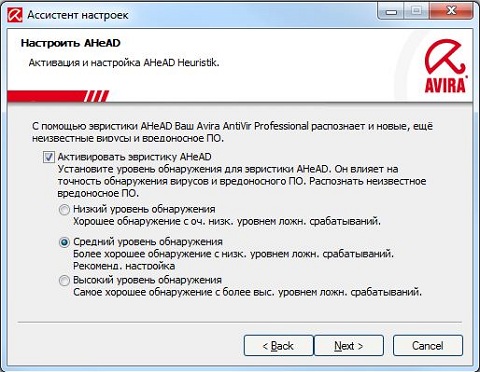
After the installation is complete, a small configuration wizard is launched, offering to choose the sensitivity level of the heuristics, that is, how the antivirus will react to suspicious files that are not yet present in the antivirus databases. This makes it possible to fight new viruses that have not yet been detected.
Also, the user will be offered a choice of which kinds of programs the antivirus should detect: programs violating privacy (SPR), backdoor clients (BDC), games, programs packed with non-standard packers, hoax programs, dubious applications (APPL), dialers for premium-rate numbers, joke programs (Jokes), spyware, adware, files with hidden extensions, phishing programs. Next, the antivirus will offer to choose the launch mode. On a normal start, Avira launches after the user has logged into the system; with a safe start, it is launched before the user logs in, which improves security but increases system boot time. In addition, you can specify mail server settings for sending notifications. After all the settings, Avira will offer to run a short system scan on first launch.
Interface
The antivirus interface has stuck to the company’s signature look for several versions in a row now. Only minor changes and improvements are made, so if you are upgrading from a previous version, you should have no trouble adjusting. In the main “Overview” section, on the “Status” tab, you can monitor the state of the antivirus.
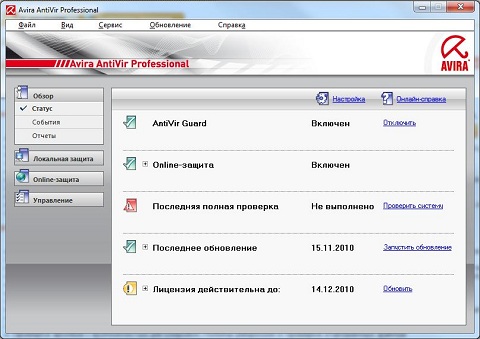
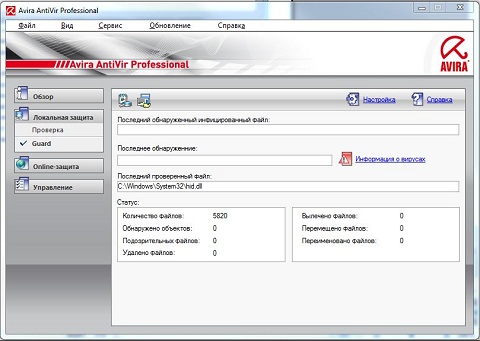
Here you will find all the necessary information about the state of the protection modules, the date of the last update and the license expiration date. Here you can also disable\enable protection, run a quick system scan, an update, or renew the license. The settings and the online help are also accessible from this window. The “Events” tab contains service information on all program modules. “Reports” lets you view the results of previous computer scans and protection triggers. The “Local protection” section allows managing computer protection in two forms: on-demand scanning, or “Scan”, and permanent, “proactive” protection. On the “Scan” tab you can pick the most convenient templates for scanning the computer for viruses. There you will find a scan of all drives, a scan of running processes, or a scan of the Windows folder. A custom scan mode is also available, where the user chooses which files and folders to scan themselves. The “Guard” tab is more informative than actionable, since active computer protection is already running; it merely displays information about the recently scanned objects and statistics on detected malicious objects.
The “Online protection” section contains two tabs: “MailGuard” and “WebGuard”. The first handles scanning incoming mail received by email clients. The second covers protection while browsing pages in the browser and downloading files from websites. “WebGuard” is similar to “Guard” in local protection and is informative in nature. The “Management” section has two tabs: “Quarantine” and “Scheduler”. Quarantine stores malicious objects neutralized as a result of scans or protection triggers. If desired, they can be restored. The “Scheduler” allows running tasks such as updates and computer scans on a schedule. When creating scheduler tasks, all the same scan templates from “Local protection” are available, as well as various run intervals.
Menu
The menu bar largely duplicates the column of sections with their tabs, but there are other useful items too. “Scan boot record” - scans the boot record of the selected hard disk or partition for virus bootloaders. “Virus list” - search for viruses in the antivirus database. “Download Rescue-CD” - Avira can download the image of a rescue disc with the latest antivirus version; booting from it, the user can perform an emergency repair of the computer in case of an infection or a lockout from logging into the system.
Settings
Entering the settings, we see the following window:
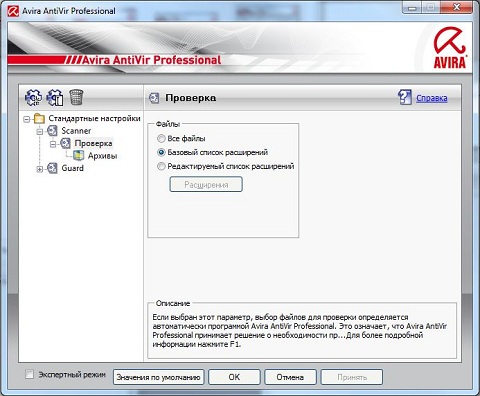
In AntiVir Personal, the settings are organized into profiles. That is, the user can create several sets of settings for all occasions. The standard user settings are unremarkable and easy to understand, especially since each settings section has a description in the language selected during installation. In this mode, only the most essential minimum of parameters is available; everything else works on standard settings optimized for the average user. If finer tuning is required, expert mode comes to the rescue.
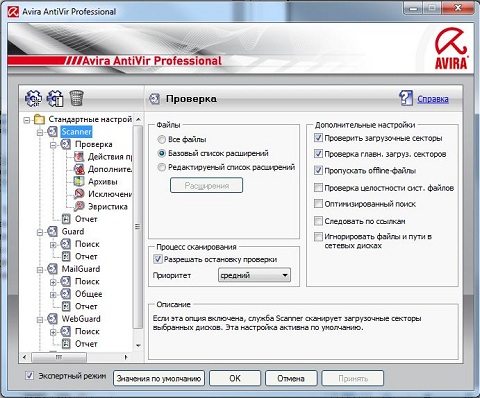
In this mode, many settings interesting and useful to the advanced user appear. Let us consider some of them:
- System file integrity check On every on-demand scan, Windows system files are checked for changes that could have been introduced by malicious programs. If a change is detected, the user receives a warning. This feature requires a lot of resources, so it is disabled by default.
- Optimized search The antivirus “politely” uses the computer’s resources, yielding to user programs when necessary. This feature can be useful on old computers.
- Ignore files and paths on network drives Allows reducing scan time by excluding files and folders located on the network from the scan list. Can be useful if the networked computers already have an antivirus.
- Actions on detection. For advanced users this setting may be interesting. Upon detecting a suspicious object or a virus, the antivirus will ask what to do with the object in interactive mode. It is possible to select a default action that will be applied if the user makes no choice.
- Exclusions. In this section you can define an exclusion list - files and\or folders that the antivirus will not scan. It is worth noting that the exclusion lists for on-demand scanning and proactive protection are separate.
- “Drive-By” protection Allows blocking suspicious frames on downloaded web pages, which also improves browsing safety.
- Password The user can set a password and the operations that require entering it. Operations protected this way include disabling protection modules, changing settings, handling scan results with repair, deletion and other equally important actions.
- Update settings Such as, for example, configuring the update source. You can not only specify a preferred update server (this can be a local mirror at an enterprise or on a local network), but also configure updating from a network share.
- Email notifications This function can be useful to system administrators or to those who want to monitor the security of several computers. Notifications can be sent in case of important events in the protection modules, such as virus detection or a malfunction. Notifications about various events of the antivirus update system are also available.
Virus scanning
The scan process window immediately delights with its “Luke Filewalker” title. You can tell right away that they love Lucas’s creative work. The window interface is quite minimalist in terms of controls, yet informative at the same time.

In this particular case, there were no viruses on my computer, which is perhaps why the “Virus information” link could be clicked to no effect. No windows appeared, no site opened. “Help”, however, opened at the first request and told me who Luke Filewalker is and what Force is with him.

If the standard default user settings are in effect, AntiVir will display a list of malicious objects after the scan and offer to repair them. If interactive notifications were enabled in the expert settings, the antivirus will stop the scan when it finds a virus and offer to choose an action. An option with automatic actions without warning is also possible. It is available in the settings too.
Conclusion
Avira AntiVir Professional is a worthy representative of the antivirus software family. Let me note some of its features. Advantages:
- A good virus scanner. Good detection of malicious programs
- Speed
- Low demands on computer resources
- Separation of settings into expert and standard
Disadvantages:
- The translation is not very good in places
- Development takes place outside Russia. Fresh local threats may be detected later than in domestic products.
Having experience with the free Avira AntiVir Free version, I can say that the antivirus works well even on weak machines, without slowing down the system, which is a significant factor. The product’s interface does not follow the latest trends of competing products. AntiVir’s credo is rather simplicity and functionality than modern design. And indeed, when everything works properly, you rarely need to see the antivirus interface at all. And with such an important task as protecting the user’s computer from viruses, Avira copes very well. This review was prepared for Softkey.info