DropBox. Drop-the-Box and what it's all about.
Note
This is a copy of my review written for the Softkey resources.
Warning
This is a 2010 review of Dropbox. The behavior of the Public folder, the Linux client, the plans and the file sharing features have changed since then, so this text should not be used as a current how-to.

Many people have probably heard something about DropBox — a service where people store files, make backups and post files for download. But let’s take a slightly closer look at what it is and what it’s used for. Generally speaking, according to Wikipedia, DropBox is cloud storage. Does that sound unclear? Simply put, it’s a service that keeps your files on its own servers.
Theory. The advantages.
Let’s go through the advantages according to the same Wikipedia:
- The client pays only for the storage space they actually use, rather than paying to rent a server whose resources they may not even use in full.
With DropBox things are even more interesting. By default you are given free access to 2 gigabytes of storage. If you sign up through a link from another DropBox member, you are credited with another 250 megabytes. By inviting your friends, you can grow your quota up to 10 gigabytes.

Also, if you need more space, you can purchase one of the two paid plans: Pro 50 or Pro 100 — 50 and 100 gigabytes respectively.
- The client doesn’t have to bother with acquiring, supporting and maintaining their own data storage infrastructure, which ultimately reduces overall production costs.
With DropBox everything is really simple. All you have to do is register an account and download the client program.
- All the procedures for backing up and preserving data integrity are carried out by the cloud center’s provider, without involving the client in the process.
By dropping files into the DropBox folder, you automatically upload them to the storage. No additional actions are needed.
Theory and practice. How does it work?
It’s all very simple: forget the fairy tales — to start using DropBox you need to:
- Register on the site (this is a referral link from the comments; you’ll get a bonus of 500 megabytes when signing up)
- Download and install the client
There are client versions for Windows, Linux, Mac OS X and even for mobile devices.
- Drop files into DropBox
A folder called “My Dropbox” will appear on your computer. During installation you can choose where the DropBox folder will live. This is a useful feature if you don’t want to keep your DropBox files on the “C” drive in Windows. It can also come in handy if you have two systems installed, for example: Windows and a Linux distribution. Hint: Under Windows the DropBox folder will always be named “My Dropbox”, while on a Linux system it’s “Dropbox”. To avoid keeping two copies of your files on one machine and to make exchanging files between the systems easier, the simplest thing is to create a symlink named “Dropbox” pointing to the “My Dropbox” directory on an NTFS drive. Or the other way around, whichever you prefer.
Practice. Why would you need this?
- Storing files
- Syncing files between computers
On computers running under the same account, files will always sync as long as there is network access. If there is a local network, files will be transferred between the computers locally. The use case is very simple: on your home computer you drop the file you need into the Dropbox folder, take your laptop to work (or simply sync your work computer), and the file is downloaded there right away.
- File change history with the ability to roll back
When a file changes, DropBox remembers the changes, and if necessary you can roll back to an older version of the file from the saved copy. It’s certainly not SVN, but it’s convenient and doesn’t take up space on your hard drive, unlike the version control features built into the OS.
- Backup
This feature will mostly come in handy for system administrators and owners of servers and websites on VDS. If you’re interested in how DropBox can be used for backups, you can read the relevant articles on Habrahabr: Backing up with no expenses. That article is what drew my attention to DropBox. A simple homemade data backup, part 2 (Python + DropBox) A variant of a simple backup system in Python, Bash and Git Automatic config backup with DropBox
- Public files
A Public folder appears inside “My Dropbox”; you can give out direct links to the files in it:
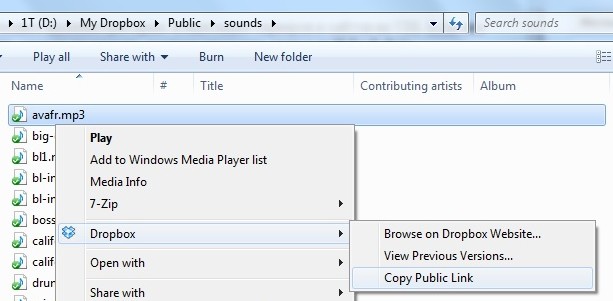
In case it’s not obvious what this could be useful for — imagine you need to upload a file somewhere for a person who may not be online, or who can’t receive a file via ICQ\Jabber\email. You simply copy the file into Public or a directory inside Public, the file immediately starts uploading to the DropBox servers, you get a link to it and hand it to the person. No human verification, no ads, no sluggish sites. The person downloads the file via a direct link without artificial speed limits. And of course, there’s no storage time limit. The file will be removed from the server only when you delete it yourself.
- Gallery
A Photos folder appears in the Dropbox folder. By creating folders with photographs inside it, you automatically create online albums. You can see an example here: http://www.dropbox.com/gallery/2542860/1/dropbox?h=74f66f
- Shared folders
Besides everything described above, you can also team up with other DropBox users and set up “Shared folders”. To do this, create any folder and specify the e-mail addresses of the people who will be invited to share the files of the common folder. As soon as those people accept the invitations that arrive in their e-mail, you’ll be able to exchange files with them. All participants of the exchange get this folder. If one of the participants puts a file in their copy of the folder, it appears for everyone. If someone modifies it, it changes for everyone. If they delete it — likewise. For example, I created a “test-share-folder” and sent an invitation to my friend @iCat. He accepted it, and the folder with all its files immediately synced to him.
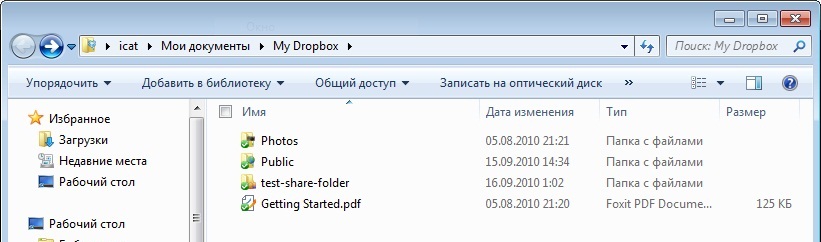
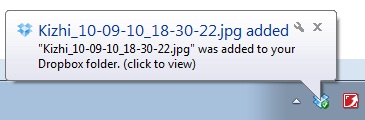
As soon as I upload a file to the folder, he gets a notification:
Practice. A personal case.
- I use DropBox to store screenshots and publish them on websites and forums. The standard system screenshot tool saves screenshots into this folder; all I do is set a name and copy the link.
- I keep program settings, such as Opera’s, in DropBox. My urlfilter.ini lives there, with the banner blocking rules in it. True, with the release of version 10.7 this will become less relevant, since that file will be synchronized through Opera Sync. However, this doesn’t stop you from keeping any other settings in DropBox.
- Keeping messenger history. If you create a symlink (linux) or an NTFS link (windows) pointing to your messenger’s history folder in DropBox, all the computers where this is done will share a single common history.
- And of course, I exchange files with friends through shared folders
- Remote torrent loading. If the computer with the torrent client has no public IP for the client’s web interface, or the client doesn’t support one, or there are other obstacles: you can drop torrents into the DropBox folder, say, at work, and at home the torrent client will pick up the new torrent files from the folder and start downloading them.
- It’s worth mentioning third-party services like Airdropper (thanks to @johan) that let you extend Dropbox’s capabilities. Airdropper itself allows your friends to upload files to your Dropbox even if they don’t have an account. You just give them a guest link, and they can upload the file they need right through their browser.
- Dropbox for an HTML coder and designer as a means to coordinate work and simplify showing the result to the client. Thanks to TecHMeaT.
In conclusion.
DropBox is a very convenient and quite powerful tool despite its outward simplicity. It’s definitely worth trying if you need to perform the tasks described in this article or need similar functionality. The official Dropbox website. Dropbox on Wikipedia. UPD: I’ve maxed out my free quota. I can put up your referral links in turn, without any guarantees. Requests — in the comments. UPD2: since more referral links came in than I expected, each link will stay up for 1 day or until the first referral. Please be honest: if you get a referral, mention it in the comments so I can switch to the next link. Also, if I bring in a referral from among my own acquaintances, I switch to the next link.